

iOS 1 min read

Swift: Switch between Storyboards

Jack Tiong
Jack Tiong
December 25, 2018

Assuming you’ve created a storyboard called “SettingControllerSB.storyboard“. Next, you will need to give the View Controller a name via “Storyboard ID” as shown below.
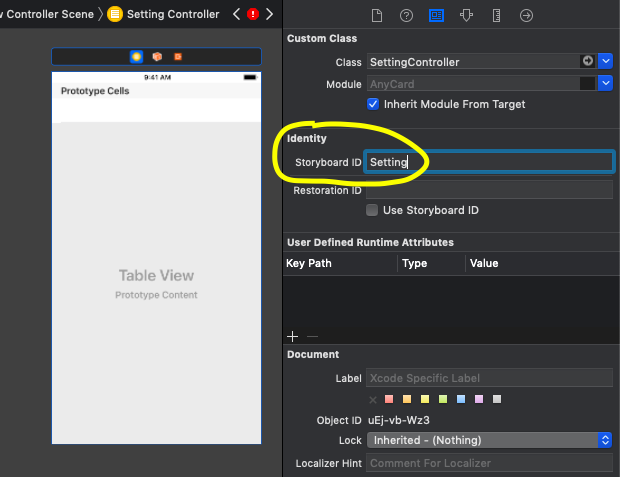
Now you should be able to switch/navigate to the view controller (SettingController) in this storyboard (SettingControllerSB) via the code snippet below.

let settingController = UIStoryboard(name: "SettingControllerSB", bundle: nil).instantiateViewController(withIdentifier: "Setting") as! SettingController

self.present(settingController, animated: true, completion: nil)
Speed Up Your Workflow

Want the full source code ready to ship?

Explore our professionally coded React Native & Expo UI Kits, complete with screens, navigators, and theme support.

Browse All Templates

Related Tutorials

View All Tutorials →
iOS

How to create multiple targets in XCode?

If you are currently working for a company as an iOS developer, chances are you might need prepare your app to be run on different environments (e.g. Development, Testing and Production). Different environments will usually run on a different set of data such as the initial setting data or more specifically the API URL might be different.

Jan 06, 2019 Read →