

Prerequisites:
- Ensure you have Python 3 install at your environment
In order to interact with excel file with python, we need to install openpyxl. Run command below in terminal / cmd to install the library.
pip install openpyxlScript 1: Read excel file
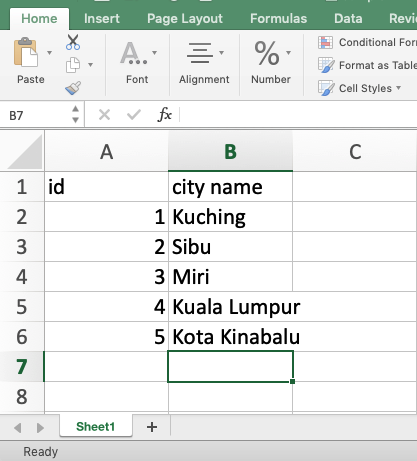
- Create a simple excel file “sample1.xlsx” with content above and saved it in my project directory
- Create a new python script as “read_excel.py”
- This script will read and print out content to python console. Please refer to script as per below:
from openpyxl import load_workbook

if __name__ == "__main__":
    wb = load_workbook(filename="sample1.xlsx", read_only=True)
    ws = wb["Sheet1"] # reading from Sheet1
    for i, row in enumerate(ws.rows):
        if i > 0:
            city_id = row[0].value
            city_name = row[1].value
            print("id: {} | city name: {}".format(city_id, city_name))
Script 2: Write excel file
- This script will edit “sample1.xlsx” created previously and append some data inside the file
- Please refer to script as per below:
from openpyxl import load_workbook

if __name__ == "__main__":
    wb = load_workbook(filename="sample1.xlsx", read_only=False)
    ws = wb["Sheet1"]
    # add Shah Alam
    ws["A7"] = 6
    ws["B7"] = "Shah Alam"

    # add Georgetown
    ws["A8"] = 7
    ws["B8"] = "Georgetown"
    wb.save("sample1.xlsx") # save to original file name
Script 3: Create new excel file
- This script will create new excel file “sample2.xlsx” and write random data to multiple worksheet
- Please refer to script as per below:
from openpyxl import Workbook

if __name__ == "__main__":
    wb = Workbook(write_only=True)

    # create state's worksheet and add random data
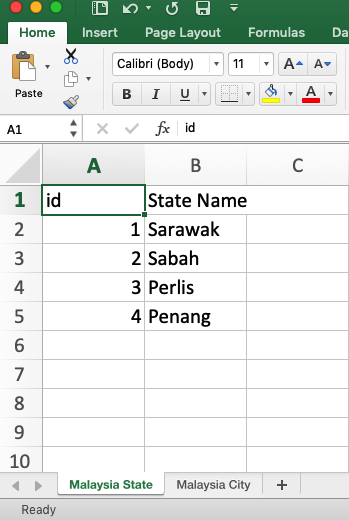
    state_ws = wb.create_sheet("Malaysia State")
    # state header
    state_ws.append(["id", "State Name"])
    # state data
    state_ws.append([1, "Sarawak"])
    state_ws.append([2, "Sabah"])
    state_ws.append([3, "Perlis"])
    state_ws.append([4, "Penang"])

    # create city's worksheet and add random data
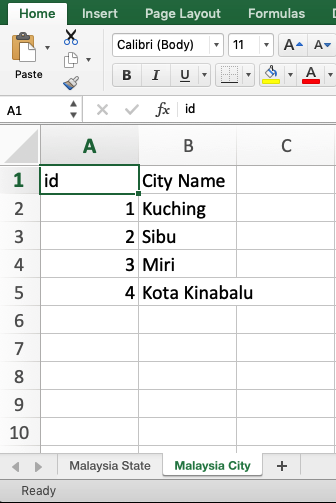
    city_ws = wb.create_sheet("Malaysia City")
    # city header
    city_ws.append(["id", "City Name"])
    # city data
    city_ws.append([1, "Kuching"])
    city_ws.append([2, "Sibu"])
    city_ws.append([3, "Miri"])
    city_ws.append([4, "Kota Kinabalu"])

    #save file
    wb.save("sample2.xlsx")
Please refer to screenshot for newly created file below:
Feel free to check my Github repo for this post.
Let me know if you have any enquiries.
Happy coding 🙂