

Prerequisites:
- Ensure you have Python 3 and SQL server install on your environment
- If you not sure how to retrieve data from SQL server with Python 3 and how to write data to excel file wtih Python 3, you are recommended to read through other blog posts below if you find difficulties to follow this post:
In this blog post, we will use libraries below:
- pyodbc – to access database in SQL Server
- openpyxl – to write data to excel
Firstly, please run command below to install libraries above:
pip install pyodbc openpyxlBefore, we proceed to retrieve data from database, please create a database.
Then, create a table as per script below in SQL Server Management Studio:
create table city
(
	id int identity(1,1),
	city_name nvarchar(200)
)
And insert some dummy table that we created above:
insert into city(city_name)
select N'Kuching'
union all
select N'Sibu'
union all
select N'Miri'
union all
select N'Kuala Lumpur'
union all
select N'Kota Kinabalu'
We use wrapper class that we created before in previous post to access SQL server database as below:
import pyodbc

class connection:
    def __init__(self, conn_string, query, params):
        # refer to documentation
        # https://github.com/mkleehammer/pyodbc/wiki/Connecting-to-SQL-Server-from-Windows
        driver = r'DRIVER={ODBC Driver 17 for SQL Server};'
        self.conn =pyodbc.connect( driver + conn_string)
        self.query = query
        self.params = params

    # function to fetch data
    def fetch_query(self):
        c = self.conn.cursor()
        c.execute(self.query, self.params)
        results = c.fetchall()
        self.conn.close()
        return results

    # function without data return
    def exec_query(self):
        c = self.conn.cursor()
        c.execute(self.query, self.params)
        self.conn.commit()
        self.conn.close()

    def close(self):
        self.conn.close()
Part 1: Save entire retrieve data on default worksheet row and column:
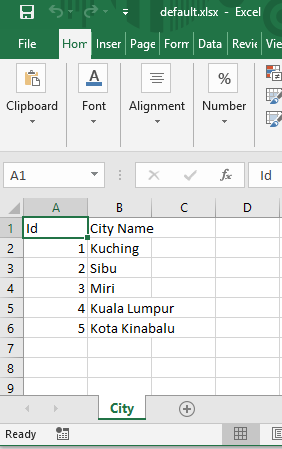
For this part, we will just save entire retrieved data from SQL server to excel sheet starting at default cell A1 with header. Please refer to function “write_to_default_ws_row_col” in script below
from connection import connection
from openpyxl import Workbook

conn_string = r'SERVER=localhost\SQLEXPRESS;DATABASE=demo;Trusted_Connection=yes;'

def read_data_from_db():
    query = " select * from city "
    # no params
    params = []
    conn = connection(conn_string=conn_string,query=query, params=params)
    city_data = conn.fetch_query()
    return city_data

def write_to_default_ws_row_col(cities):
    wb = Workbook(write_only=True)
    city_ws = wb.create_sheet("City")
    # write header
    city_ws.append(["Id", "City Name"])

    # write data
    for city in cities:
        city_id = city[0]
        city_name = city[1]
        city_ws.append([city_id, city_name])

    wb.save("default.xlsx")


if __name__ == "__main__":
    city_data = read_data_from_db()
    write_to_default_ws_row_col(cities= city_data)
Please refer to “default.xlsx” file content in screenshot below:
Part 2: Save retrieve data on specific row and column:
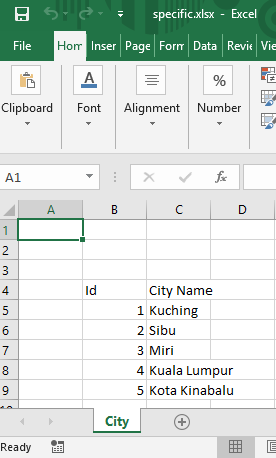
For this part, we will write retrieved data to specific cell. Please refer function “write_to_specific_cell” in script below:
from connection import connection
from openpyxl import Workbook
from openpyxl import load_workbook

conn_string = r'SERVER=localhost\SQLEXPRESS;DATABASE=demo;Trusted_Connection=yes;'

def read_data_from_db():
    query = " select * from city "
    # no params
    params = []
    conn = connection(conn_string=conn_string,query=query, params=params)
    city_data = conn.fetch_query()
    return city_data

def write_to_default_ws_row_col(cities):
    wb = Workbook(write_only=True)
    city_ws = wb.create_sheet("City")
    # write header
    city_ws.append(["Id", "City Name"])

    # write data
    for city in cities:
        city_id = city[0]
        city_name = city[1]
        city_ws.append([city_id, city_name])

    wb.save("default.xlsx")

def write_to_specific_cell(cities):
    # first create worksheet with write only mode
    wb = Workbook(write_only=True)
    city_ws = wb.create_sheet("City")
    wb.save("specific.xlsx")

    # then edit workbook with load_workbook
    wb2 = load_workbook("specific.xlsx")
    city_ws = wb2["City"]
    #  save header starting at cell B4
    city_ws.cell(row=4,column=2).value = "Id"
    city_ws.cell(row=4, column=3).value="City Name"

    # save data starting at cell B5
    for i,row in enumerate(cities):
        for j, col in enumerate(row):
            city_ws.cell(row=(5 + i), column=(2 + j)).value = col

    wb2.save("specific.xlsx")


if __name__ == "__main__":
    city_data = read_data_from_db()
    write_to_default_ws_row_col(cities= city_data)
    write_to_specific_cell(cities= city_data)
Please refer to “specific.xlsx” file content in screenshot below:
Thanks for your time reading this. To access source code for this post, please visit my Github repo. Let me know if you have any doubt or question.
Happy Coding!